Run multiple instances of the same systemd unit
I needed to start multiple instances of a single unit automatically with systemd. Instead of copying the same unit file multiple times, we can solve this with a single systemd template file.
By appending the @ symbol to the unit file name, it becomes a template unit file and can be called multiple times.
For example, if we request a service called worker@1.service, systemd will first look for an exact filename match in its available unit files. If nothing is found, it will look for a file called worker@.service.
That last file will then be used to instantiate the unit based on the argument it was passed. In our example, the argument is 1, but it can be any string.
You can then access this argument by using the %i identifier in your unit file.
Create an example worker script
So for example, here is a /usr/local/bin/worker.sh script that I want started multiple times. It looks like this:
#!/bin/bash

WORKER=$1

if [ -z "$WORKER" ]; then
  WORKER=0
fi

while :
do
  /usr/bin/logger -t worker "instance #${WORKER} still working .."
  sleep 5
done
This script will keep running forever and send a message to syslog every 5 seconds. Make sure it’s executable with chmod +x /usr/local/bin/worker.sh .
Create the systemd service unit
Instead of creating a new file for each instance and managing them all separately, we can create a worker@.service file in the /etc/systemd/system/ directory (or wherever you keep your systemd unit files). Its contents looks like this:
[Unit]
Description="Worker instance #%i"

[Service]
Type=simple
ExecStart=/usr/local/bin/worker.sh %i
We can test this by reloading the systemd configuration and starting two instances of the service:
systemctl daemon-reload
systemctl start worker@1.service worker@2.service
Check the output of syslog to make sure these two are working:
tail -f /var/log/syslogIn its output, you should see these lines come by every 5 seconds:
Jan 14 22:22:15 vagrant systemd[1]: Started “Worker instance #1”.
Jan 14 22:22:15 vagrant worker #1: working ..
Jan 14 22:22:15 vagrant systemd[1]: Started “Worker instance #2”.
Jan 14 22:22:15 vagrant worker #2: working ..
Jan 14 22:22:20 vagrant worker #1: working ..
Jan 14 22:22:20 vagrant worker #2: working ..
Jan 14 22:22:25 vagrant worker #1: working ..
You can now manage each service individually with systemd. For example, you can stop one of them and check on the status of the other:
systemctl stop worker@1.service
systemctl status worker@2.service
Use a target file to manage all instances
To wrap things up, it would be much easier if we could manage all of them with a single unit, instead of having to repeat every instance argument each time. We can group these units by creating a target unit. Create this unit file at /etc/systemd/system/workers.target:
[Unit]
Description=Workers
Requires=worker@1.service worker@2.service worker@3.service

[Install]
WantedBy=multi-user.target
We define all the services we need in the Requires= directive. This will make sure the instances we need are started when we invoke this target.
The WantedBy= directive will look familiar to you, this tells systemd to start it after boot.
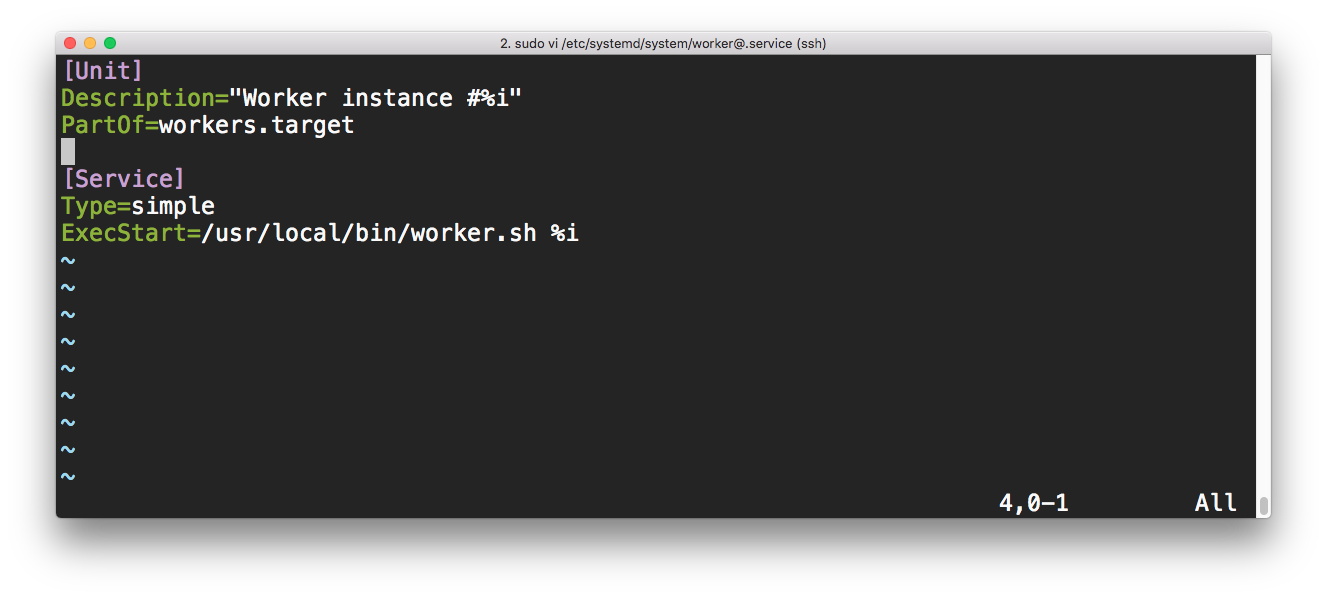
Finally, we need to add the PartOf= directive to the [Unit] section of our original worker@.service file:
PartOf=workers.targetThis tells systemd that the worker@.service unit is a dependency of workers.target. This ensures that when systemd stops or restarts workers.target, the action is propagated to this unit too.
Now let’s give all this a quick try. Start all instances by invoking the new target:
systemctl start workers.targetAnd check the results:
# check for output from all three instances in the syslog:
tail -f /var/log/syslog
# or look in the process list for these three worker.sh processes:
ps -aef | grep worker.sh
# and check the systemd status for each worker indvidually:
systemctl status worker@1.service worker@2.service worker@3.service
Similarly, stopping the workers.target unit will also stop all worker instances: systemctl stop workers.target.
If everything is working as expected, enable the unit so it will start on boot with systemctl enable workers.target!
Update - Martin Olsson pointed out to me that using the Requires= directive will restart all workers (including the target service) when one of them is restarted when Restart=always is set. If you don’t want this behaviour, I recommend to use Wants= instead of Requires=, which is a weaker version of Requires=. Wants= will only start when the related unit is started, but will not be stopped or restarted along with the related unit.